How to change your Minecraft version
You can move your server to a newer or older Minecraft version from the Settings tab, and your world comes with it.
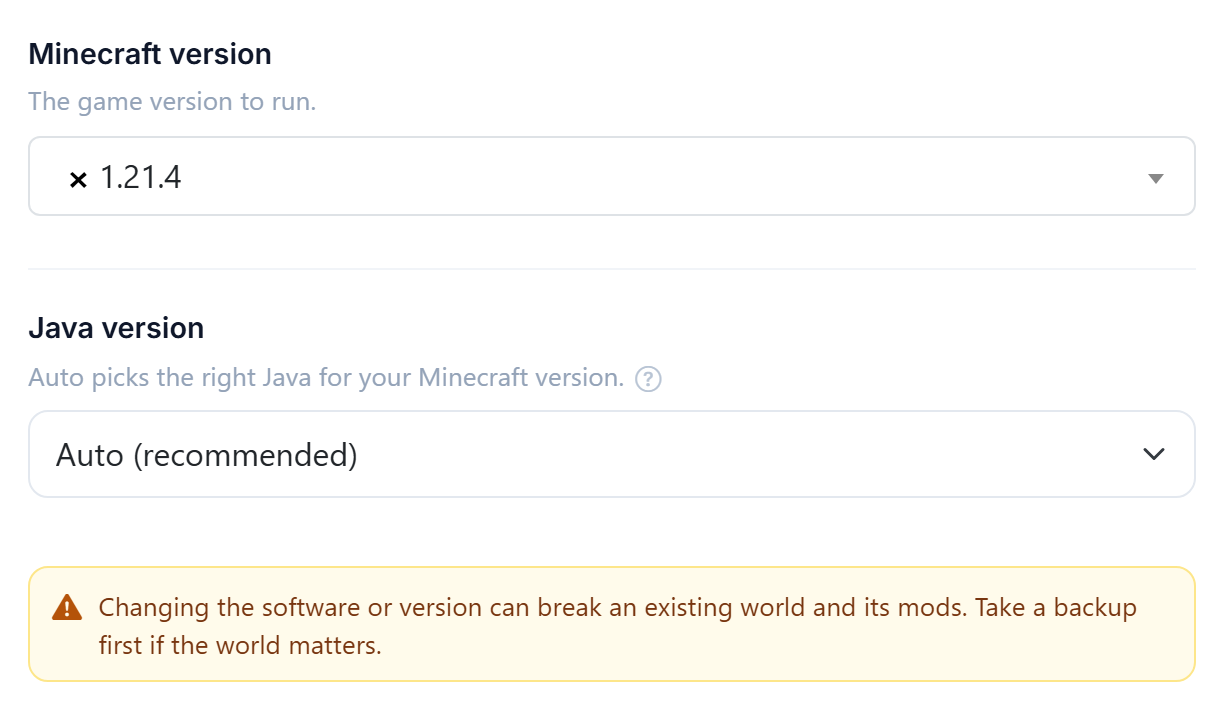
Before you change
- Take a fresh backup. See Back up and restore your world. This is your only way back.
- Check your add-ons. Mods and plugins are built for specific versions. A jump of a major version will usually break them until you update each one.
Change it
- Open the Settings tab.
- Pick the Minecraft version you want.
- Save, then Restart. The server downloads the new version as it boots, so the first start takes longer than usual.
Upgrading is safe, downgrading is not
Going forwards is normally fine. Minecraft converts the world as it loads, and once converted it keeps working.
Going backwards is the dangerous direction. Once a world has been opened in a newer version its data is written in a format older versions do not understand. Chunks can come back corrupted or empty, and the damage is not always obvious straight away.
If you need to go back a version, restore the backup you took before the upgrade rather than downgrading the current world. That is the difference between a five-minute rollback and losing builds.
After the change
Check the Console on first boot. Errors naming a specific mod or plugin mean that add-on has not caught up with the new version yet, and the fix is to update or remove that one file rather than to roll everything back.
Bringing this server in from elsewhere? Version detection and switching happen automatically as part of that - see Import your server from another host.
Was this helpful?
Still need help? Contact support.