How to connect with SFTP (FileZilla)
For moving a lot of files at once, or anything large, a desktop client like FileZilla beats the web file manager. Your connection details live on the server's SFTP tab.
Bringing files in from an old host rather than moving things around on this one? The Import tab can connect to that host directly over SFTP or FTP and pull everything in for you - see Import your server from another host.
Find your details
Open the Files tab and switch to SFTP. It shows four things, each with a copy button:
- Host the machine your server runs on
- Port always
24022 - Username unique to this server, in the form
srv_1000000 - Password click the eye to reveal it
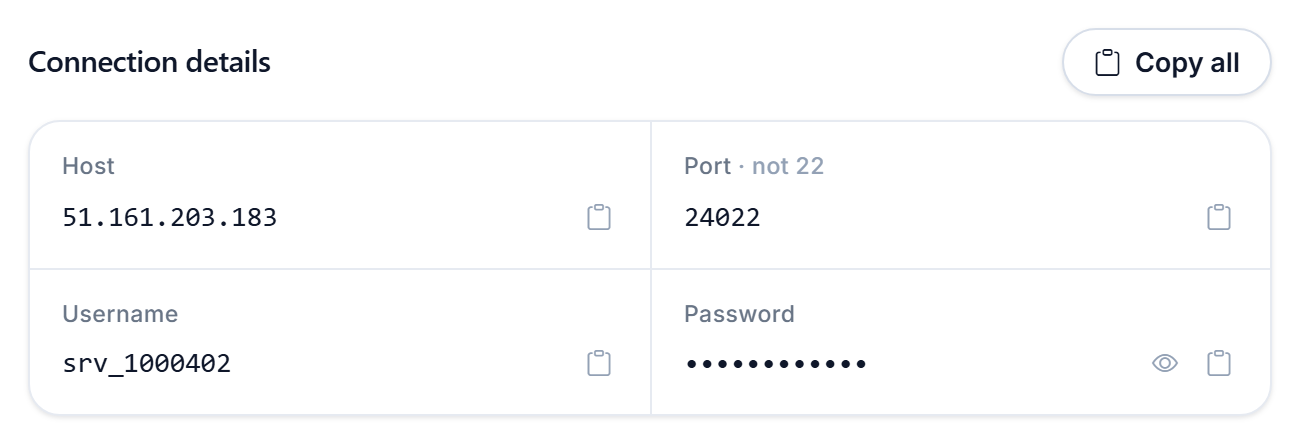
The SFTP password is not your panel password. It is generated for this server and shown only on that tab, so copy it from there rather than typing what you log in with.
Connect in FileZilla
- Open FileZilla and go to File → Site Manager → New Site.
- Set Protocol to SFTP - SSH File Transfer Protocol. It defaults to FTP, which will not connect.
- Enter the Host and set Port to 24022.
- Set Logon Type to Normal, then paste in the username and password.
- Open the Transfer Settings tab and set Limit number of simultaneous connections to 2.
- Click Connect and accept the host key the first time.
Set the connection limit, seriously
Your account allows two connections at once. FileZilla asks for ten by default, so it connects fine and then starts throwing errors partway through a large upload. Step 5 is what prevents that, and it is the single most common reason an SFTP transfer fails here.
Where you land
You start inside your server's own folder, the one holding server.properties, world and your mods or plugins folder. There is nothing above it you can reach or break.
Stop the server before you touch anything inside
world. A running server holds the map in memory and writes it back on its own schedule, so edits made while it is up can be silently overwritten.
Was this helpful?
Still need help? Contact support.