How to add a server icon
The server icon is the small picture beside your server in the Minecraft multiplayer list. It costs nothing and makes a server look established rather than thrown together.
Add it
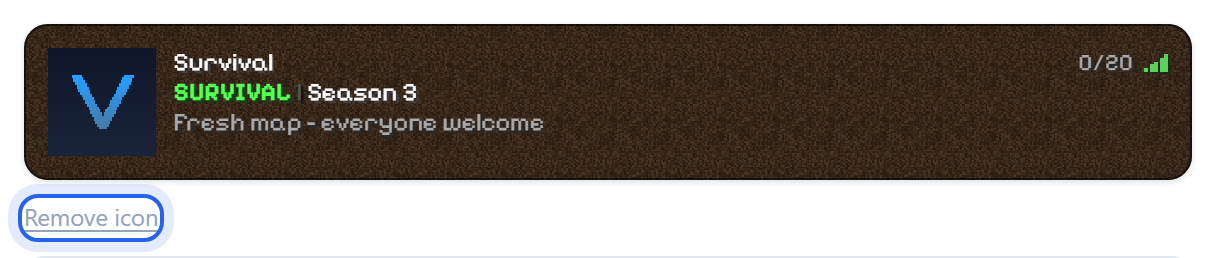
- Go to Settings. The Server section at the top shows a preview of your server exactly as players see it in their list.
- Click the icon square on the left of that preview.
- Pick any image from your computer.
- Restart the server.

That is the whole job. You do not need to resize anything, convert anything, or name the file in a particular way - your browser crops and resizes the picture to the 64 by 64 PNG Minecraft wants before it is uploaded.
Minecraft loads the icon when the server boots, so it will not appear until you restart.
Removing or changing it
The same square says Change once an icon is set, and Remove icon underneath takes it off again.
Choosing a picture
- Square works best. A wide picture gets cropped to a square, so anything important near the edges is lost.
- Keep it simple. The icon is displayed at 64 by 64 pixels, roughly the size of a fingernail. A logo or a single bold shape reads; a screenshot does not.
- Transparency is kept, so a logo on a transparent background sits cleanly against the list.
If it still does not appear
- Restart the server. The icon is only read at boot.
- Remove and re-add the server in your Minecraft client. The client caches the old icon, so it can keep showing nothing long after the server is serving one correctly.
Was this helpful?
Still need help? Contact support.